Introduction to Image Analysis
Image files can effectively contain hacker culture, which is why various image files frequently appear in CTF competitions.
Image files have multiple complex formats that can be used for various analysis and decryption tasks involving metadata, lossy and lossless compression, checksums, steganography, or visual data encoding. These are all very important challenge directions in Misc. There are many knowledge points involved (including basic file formats, common steganography techniques, and steganography software), and some areas require in-depth understanding.
Metadata
Metadata, also known as intermediary data, is data about data. It mainly describes the properties of data and is used to support functions such as indicating storage locations, historical data, resource discovery, and file records.
Hiding information in metadata is the most basic technique in competitions, usually used to hide some key Hint information or important information such as password.
You can view this type of metadata by Right-click --> Properties, or by using the strings command. Generally speaking, some hidden information (strange strings) often appears in the header or the trailer.
Next, let's introduce the identify command, which is used to obtain the format and characteristics of one or more image files.
-format is used to specify the information to display. Flexible use of its -format parameter can be quite convenient for solving challenges. Specific meanings of format parameters
Example
Break In 2017 - Mysterious GIF
One difficulty of this challenge is discovering and extracting the metadata in the GIF. First, strings can reveal the anomaly.
GIF89a
   !!!"""###$$$%%%&&&'''((()))***+++,,,---...///000111222333444555666777888999:::;;;<<<===>>>???@@@AAABBBCCCDDDEEEFFFGGGHHHIIIJJJKKKLLLMMMNNNOOOPPPQQQRRRSSSTTTUUUVVVWWWXXXYYYZZZ[[[\\\]]]^^^___```aaabbbcccdddeeefffggghhhiiijjjkkklllmmmnnnooopppqqqrrrssstttuuuvvvwwwxxxyyyzzz{{{|||}}}~~~
4d494945767749424144414e42676b71686b6947397730424151454641415343424b6b776767536c41674541416f4942415144644d4e624c3571565769435172
NETSCAPE2.0
ImageMagick
...
This hex string is actually hidden in the metadata area of the GIF.
Next comes extraction. You can choose Python, but using identify is more convenient.
root in ~/Desktop/tmp λ identify -format "%s %c \n" Question.gif
0 4d494945767749424144414e42676b71686b6947397730424151454641415343424b6b776767536c41674541416f4942415144644d4e624c3571565769435172
1 5832773639712f377933536849507565707478664177525162524f72653330633655772f6f4b3877655a547834346d30414c6f75685634364b63514a6b687271
...
24 484b7735432b667741586c4649746d30396145565458772b787a4c4a623253723667415450574d35715661756278667362356d58482f77443969434c684a536f
25 724b3052485a6b745062457335797444737142486435504646773d3d
The remaining process will not be described here. Please refer to the Writeup in the link.
Pixel Value Conversion
Look at the data in this file, what does it remind you of?
255,255,255,255,255...........
It's a series of RGB values. Try converting them into an image.
from PIL import Image
import re

x = 307 #x coordinate  obtained by integer factorization of the number of lines in the txt
y = 311 #y coordinate  x*y = number of lines

rgb1 = [****]
print len(rgb1)/3
m=0
for i in xrange(0,x):
    for j in xrange(0,y):

        line = rgb1[(3*m):(3*(m+1))]#get one line
        m+=1
        rgb = line

        im.putpixel((i,j),(int(rgb[0]),int(rgb[1]),int(rgb[2])))#convert rgb to pixels
im.show()
im.save("flag.png")
Conversely, if you extract RGB values from an image and then compare the RGB values, you can obtain the final flag.
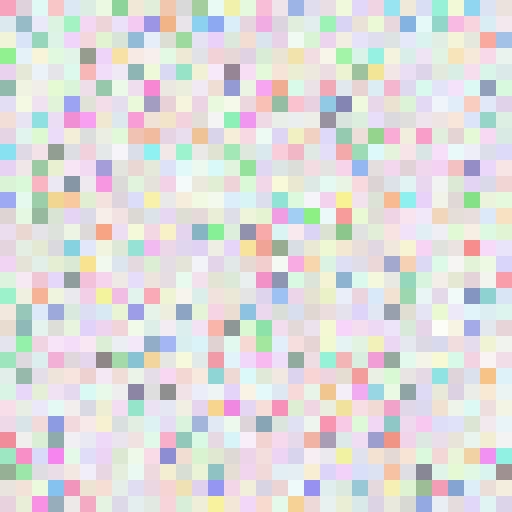
Most of these types of challenges consist of images made up of pixel blocks, as shown below.
Related challenges: