Data Extraction
This is another key focus in traffic packets. After finding the key point of the challenge through protocol analysis, how to extract data becomes the next critical issue.
Wireshark
Wireshark Automatic Analysis
file -> export objects -> http
Manual Data Extraction
file->export selected Packet Bytes
tshark
As the command-line version of Wireshark, tshark's advantage is its high efficiency. Combined with other command-line tools (awk, grep, etc.) used flexibly, it can quickly locate and extract data, saving the effort of writing complex scripts.
Let's look at the Google CTF 2016 Forensic-200 challenge again. It can be quickly solved using tshark.
what@kali:/tmp$ tshark -r capture.pcapng -T fields -e usb.capdata > data2.txt
what@kali:/tmp$ # awk -F: 'function comp(v){if(v>127)v-=256;return v}{x+=comp(strtonum("0x"$2));y+=comp(strtonum("0x"$3))}$1=="01"{print x,y}' data.txt > data3.txt
what@kali:/tmp$ gnuplot
> plot "data3.txt"
- Step 1: Extract data from the mouse protocol
- Step 2: Convert position coordinates using awk
- Step 3: Generate the graphic
Common Methods
tshark -r **.pcap –Y ** -T fields –e ** | **** > data
Usage:
  -Y <display filter>      packet displaY filter in Wireshark display filter
                           syntax
  -T pdml|ps|psml|json|jsonraw|ek|tabs|text|fields|?
                           format of text output (def: text)
  -e <field>               field to print if -Tfields selected (e.g. tcp.port,
                           _ws.col.Info)
Use the -Y filter (same as Wireshark), then use -T fields -e to specify the data fields to display (e.g., usb.capdata).
tips- If you're unsure about the parameter after
-e, you can obtain it fromwiresharkby right-clicking on the desired data and selecting it.
- If you're unsure about the parameter after
Examples
Challenge:
google-ctf-2016 : a-cute-stegosaurus-100
The data in this challenge is hidden very cleverly, and there is an image to mislead. It requires deep familiarity with the tcp protocol, so not many teams solved it at the time — only 26 teams worldwide.
In the tcp segment, there are 6 bits of status control codes, as follows:
- URG: Urgent bit. When URG=1, it indicates that the urgent pointer field is valid, meaning this packet is an urgent packet. It tells the system that there is urgent data in this segment that should be transmitted as soon as possible (equivalent to high-priority data).
- ACK: Acknowledge bit. The acknowledgment number field is only valid when ACK=1, meaning this packet is an acknowledgment packet. When ACK=0, the acknowledgment number is invalid.
- PSH: Push function. When set to 1, it requests the other party to immediately transmit the remaining corresponding packets in the buffer without waiting for the buffer to be full.
- RST: Reset bit. When RST=1, it indicates a serious error has occurred in the TCP connection (e.g., due to a host crash or other reasons), and the connection must be released and then re-established.
- SYN: Synchronous bit. When SYN is set to 1, it indicates that this is a connection request or connection acceptance message. A packet with the SYN flag typically means an 'active' intention to connect to the other party.
- FIN: Final bit, used to release a connection. When FIN=1, it indicates that the sending end of this segment has finished sending data and requests to release the transport connection.
However, the tcp.urg here is:
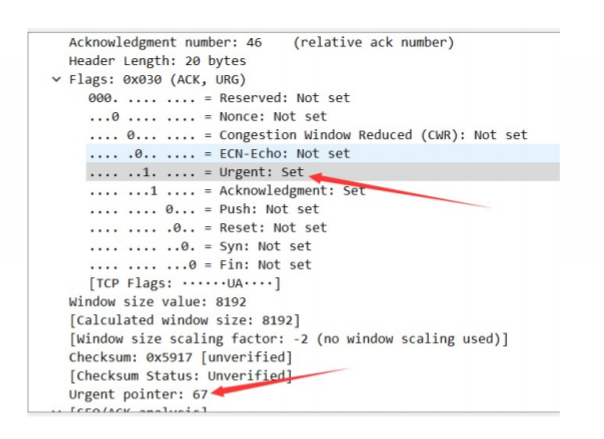
Extract tcp.urg using tshark, then remove the 0 fields, convert newlines to , to directly convert to a Python list, and convert to ASCII to get the flag.
⚡ root@kali:  tshark -r Stego-200_urg.pcap -T fields -e  tcp.urgent_pointer|egrep -vi "^0$"|tr '\n' ','
Running as user "root" and group "root". This could be dangerous.
67,84,70,123,65,110,100,95,89,111,117,95,84,104,111,117,103,104,116,95,73,116,95,87,97,115,95,73,110,95,84,104,101,95,80,105,99,116,117,114,101,125,#
...
>>> print "".join([chr(x) for x in arr]) #python convert to ascii
CTF{And_You_Thought_It_Was_In_The_Picture}
Challenge:
stego-150_ears.xz
Step 1
Decompress repeatedly using the file command to get the pcap file.
➜  Desktop file ears
ears: XZ compressed data
➜  Desktop unxz < ears > file_1
➜  Desktop file file_1
file_1: POSIX tar archive
➜  Desktop 7z x file_1

7-Zip [64] 16.02 : Copyright (c) 1999-2016 Igor Pavlov : 2016-05-21
p7zip Version 16.02 (locale=en_US.UTF-8,Utf16=on,HugeFiles=on,64 bits,1 CPU Intel(R) Core(TM) i7-4710MQ CPU @ 2.50GHz (306C3),ASM,AES-NI)

    Scanning the drive for archives:
    1 file, 4263936 bytes (4164 KiB)

    Extracting archive: file_1
    --
    Path = file_1
    Type = tar
    Physical Size = 4263936
    Headers Size = 1536
    Code Page = UTF-8

    Everything is Ok

    Size:       4262272
    Compressed: 4263936
Step 2
Through wireshark, we find that the response names in dns are abnormal, forming a hexadecimal png file.
Use tshark to extract data from dns, filtering for the specific packet pattern \w{4,}.asis.io.
tshark -r forensic_175_d78a42edc01c9104653776f16813d9e5 -T fields -e dns.qry.name -e dns.flags|grep 8180|awk '{if ($1~/\w{4,}.asis.io/) print $1}'|awk -F '.' '{print $1}'|tr -d '\n' > png
Step 3
Restore the image from hexadecimal.
xxd -p -r png flag
Custom Protocols
There is a special case in data extraction where the transmitted data itself uses custom protocols. Below we use two Misc challenges from HITCON 2018 as examples.
Example Analysis
ev3 basic
Identifying the Data
For this type of challenge, first analyze which packets contain the valid data. Observing the traffic, the two communicating parties are localhost and LegoSystem. The large number of packets marked as PKTLOG are logs, which don't need attention in this challenge. After briefly browsing the traffic of various protocols, we find that only the RFCOMM protocol contains data segments not parsed by wireshark, and RFCOMM is one of the transport layer protocols used by Bluetooth.
Based on the tshark introduction above, we can extract data with the following command:
tshark -r .\ev3_basic.pklg -T fields -e data -Y "btrfcomm"
Analyzing the Protocol
After finding the data, we need to determine the data format. For how to search for information, refer to the Information Gathering Techniques section, which won't be elaborated here. Starting from the keyword ev3, we eventually learn that the content transmitted through this communication method is called Direct Command, using a simple application layer protocol custom-defined by LEGO. The Command format itself is defined by LEGO's manual EV3 Firmware Developer Kit. (The search process is not as simple and straightforward as described here, and is one of the key points of this challenge.)
In LEGO's protocol, sending and replying follow different formats. In ev3 basic, all reply traffic is identical, and according to the manual, the content represents ok with no actual meaning. Each sent data packet contains one instruction. The Opcode parsed from the protocol format is 0x84, representing the UI_DRAW function, with CMD being 0x05, representing TEXT. This is followed by four parameters: Color, X0, Y0, STRING. Note that in LEGO's protocol, the byte count of a single parameter is not fixed — even if the manual specifies the data type as DATA16, a single-byte parameter may still be used. Refer to the Parameter encoding section in the manual and related articles.
After analyzing several commands, we find that each instruction prints a character at a specific position on the screen, which is consistent with the provided image.
Processing the Results
After understanding the data content, extract all commands and parse the parameters using a script. Note that the byte count of a single parameter is not fixed.
After obtaining the parameters of all commands, you can draw each character on the screen according to its coordinates. A simpler approach is to sort first by X then by Y, and output directly.
ev3 scanner
The approach for the second challenge is essentially the same as the first, with increased difficulty in the following areas:
-
The sent commands are no longer uniform, including reading sensor information and controlling ev3 movement
-
Replies also contain information, mainly sensor readings
-
Function parameters are more complex and harder to parse
-
The results obtained from parsing commands require more processing
ev3 scanner will not be explained in detail here and can serve as an exercise to deepen understanding of this type of challenge.
Python Script
TODO